
Productivity Tools: User Enablement Ribbon
From first draft to the final polish, working in Word and Powerpoint has never been easier.
Enhance your Word and PowerPoint experience
User enablement is a set of tools for Word and PowerPoint that help you work smarter, not harder. Spend less time formatting and finalizing, and more time focusing on what matters: your content.

Save time
Quick buttons for styles, headings, and layouts help teams work efficiently.

Stay consistent
Ensure every document looks polished and professional.

Simplify collaboration
Clean up comments, footnotes, and track changes in seconds.
Key capabilities
Ribbon overview.
Users across teams can quickly format and finalize reports, proposals, and presentations using predefined styles, layouts, and cleanup tools. The User Enablement ribbon allows users to work more efficiently, maintaining quality and consistency in both Microsoft Word and PowerPoint.

-
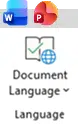
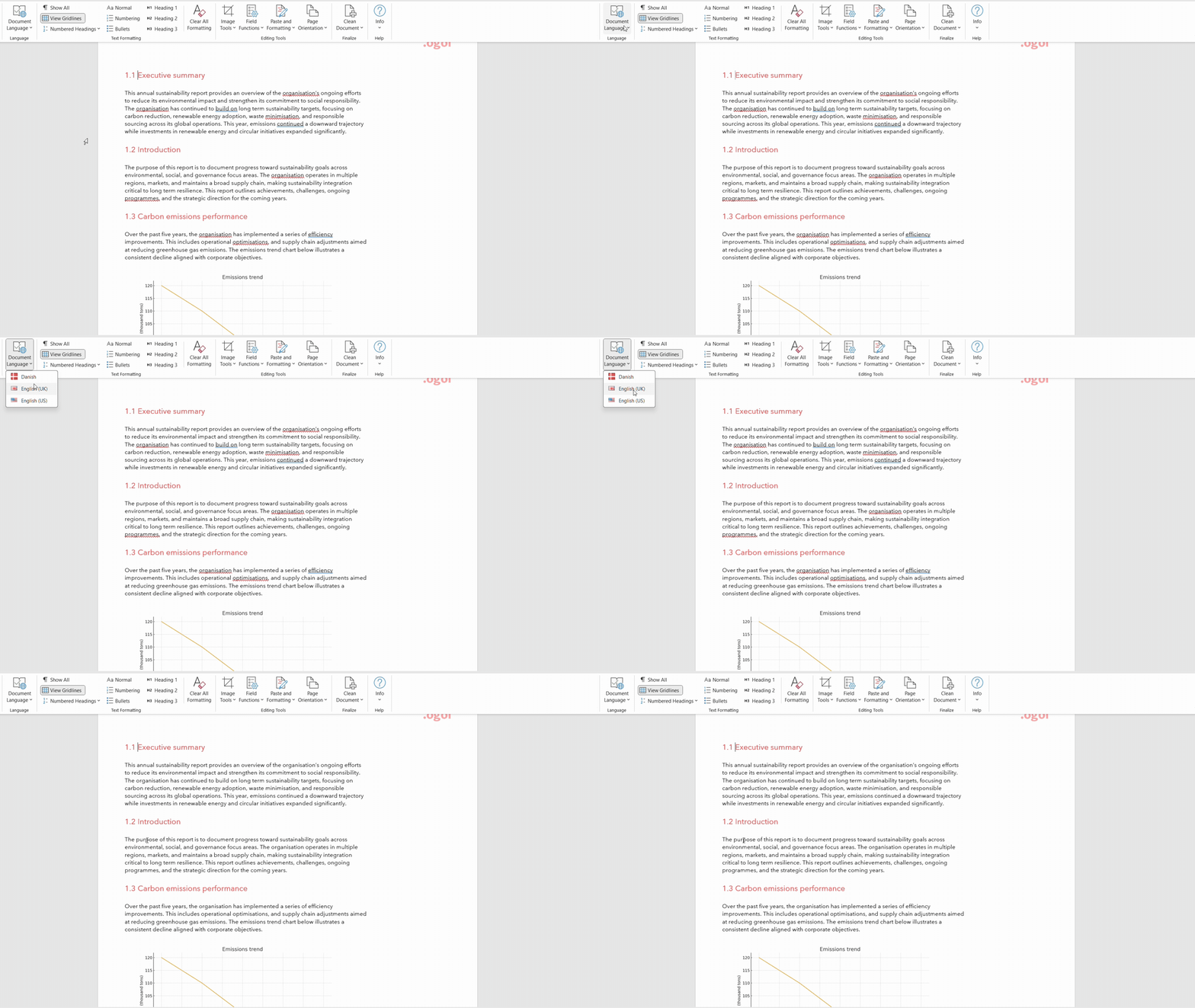
Language group
One-click proofreading
for every corporate languageEnsure clear, correct communication across markets, without clicking through proofing language menu to change settings.
- Adjust the document or presentation’s proofreading language instantly.
- Ensure spelling, grammar, and proofreading settings match your audience and output needs.
-
-
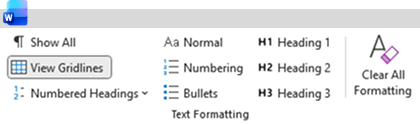
Text Formatting group
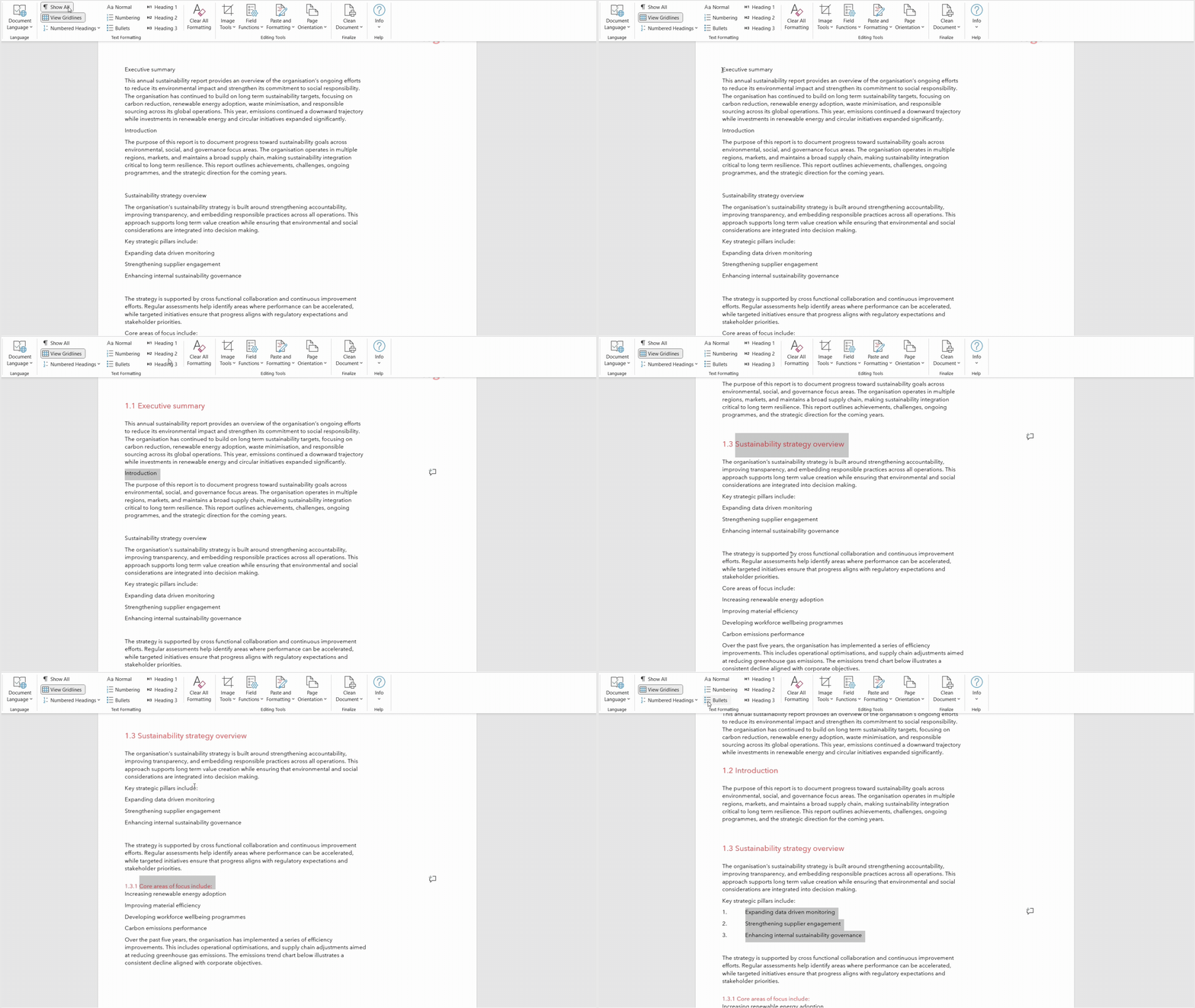
Smarter text and layout control
The Text Formatting group gives users quick access to the essential formatting tools they need in their daily document creation flows. Documents that stay tidy and easy to navigate, and structure is maintained even when multiple contributors are involved.
- Make formatting visible by showing structure and gridlines when needed.
- Apply styles, numbering, and clean formatting instantly to maintain structure and reduce manual editing
- Add or remove heading numbering to create clear hierarchy for document clarity and accessibility.
-
-
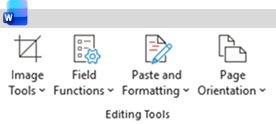
Editing Tools group
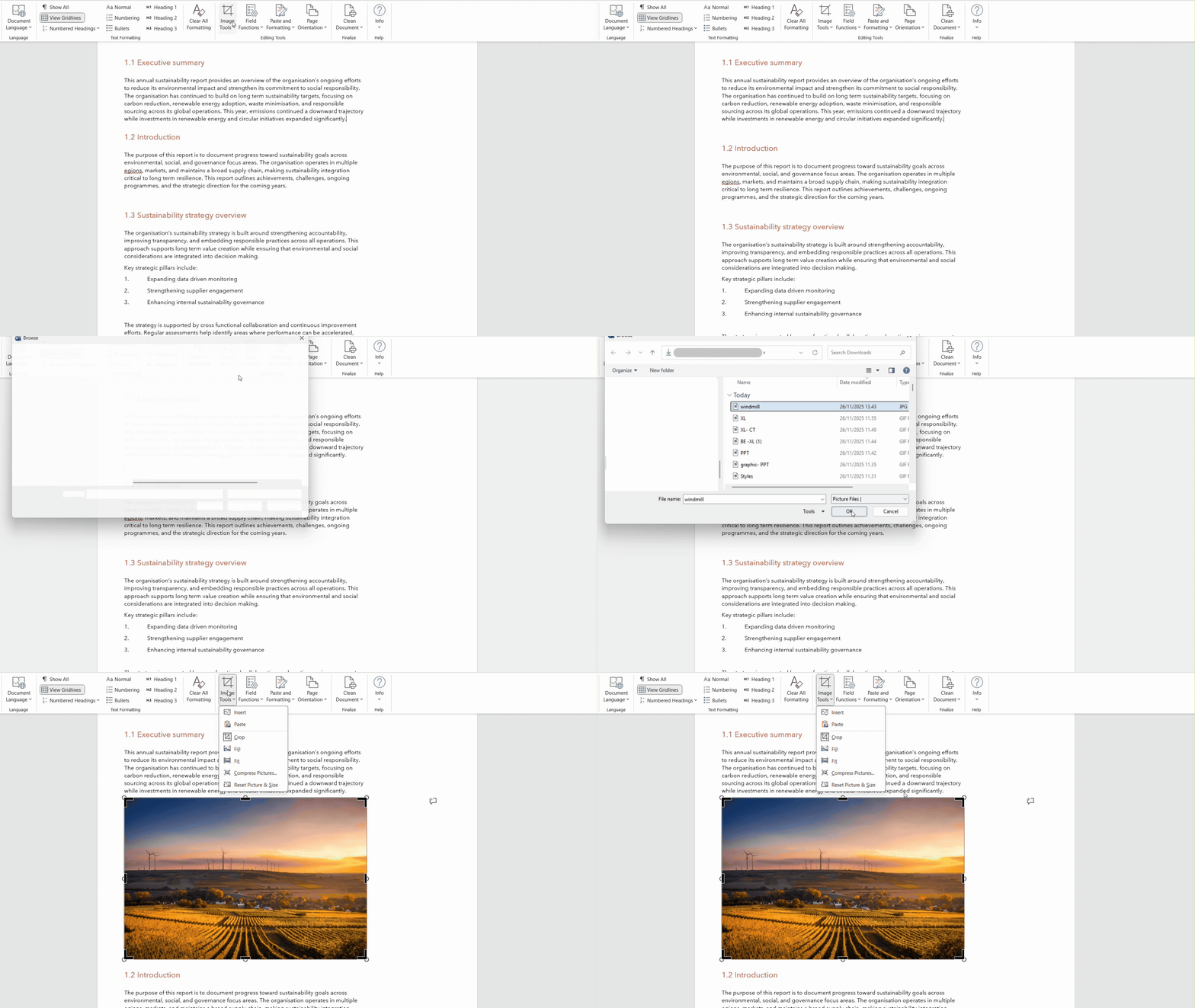
A smoother way to
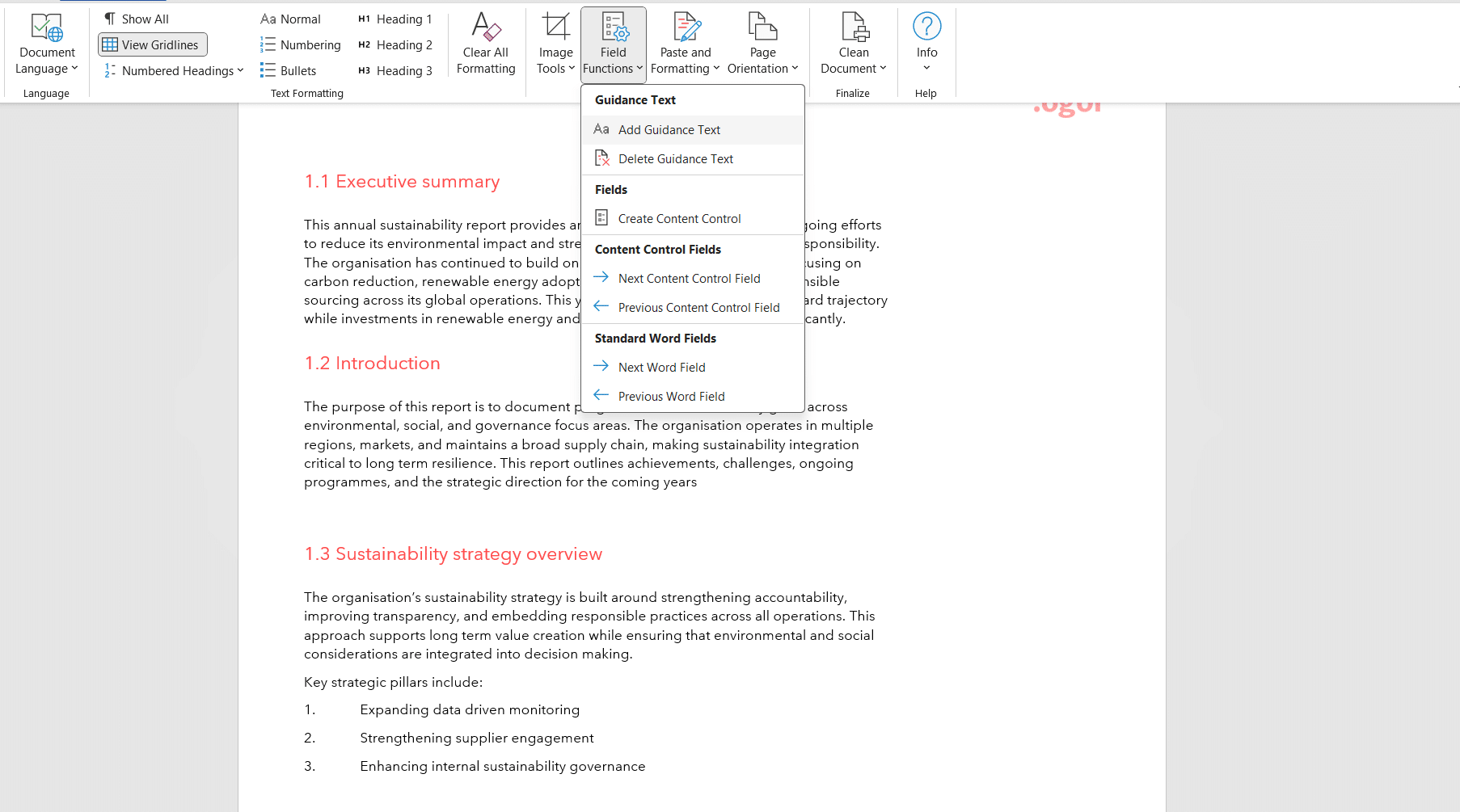
add and adjust contentFix formatting issues quickly and streamline content updates so documents always look polished. Manage images and content fields with ease within your document, a switch page sizes or orientations on demand to adapt to different document formats.
- Insert and adjust images with built-in tools for cropping, fitting, compressing, and resetting.
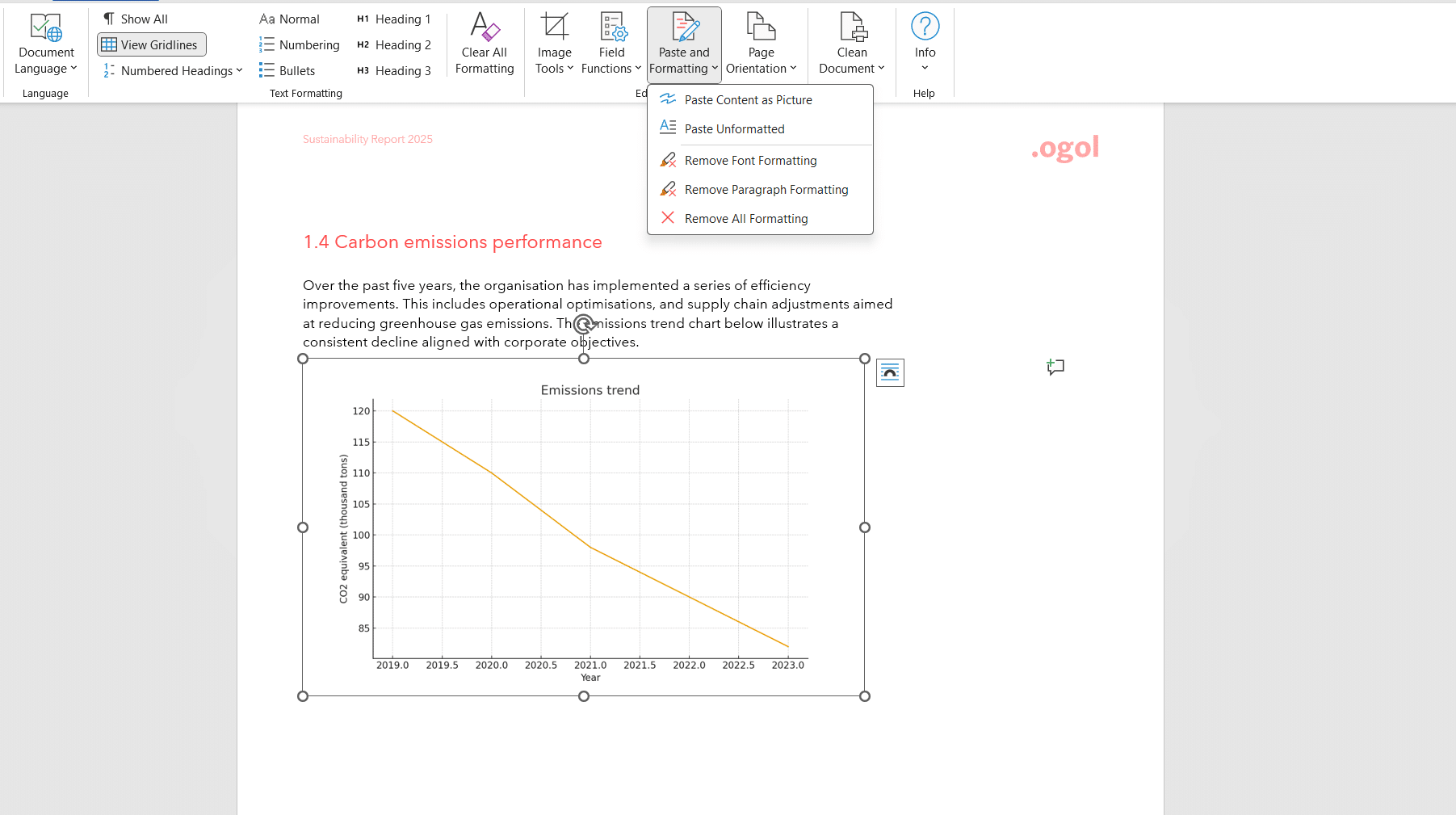
- Paste text cleanly without bringing unwanted formatting with it.
- Clean messy font or paragraph styling in one click.
- Navigate through structured content and fields efficiently.
- Switch between portrait and landscape instantly.
- Toggle page sizes for different outputs like A3 or A4.
- Insert new pages in the correct orientation and placement without breaking the layout.
-
-
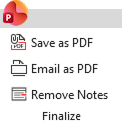
Finalize group
Clean and prepare files
for document delivery.Speed up the last mile of document or presentation production with tools that clean and prepare files for publishing or sending.
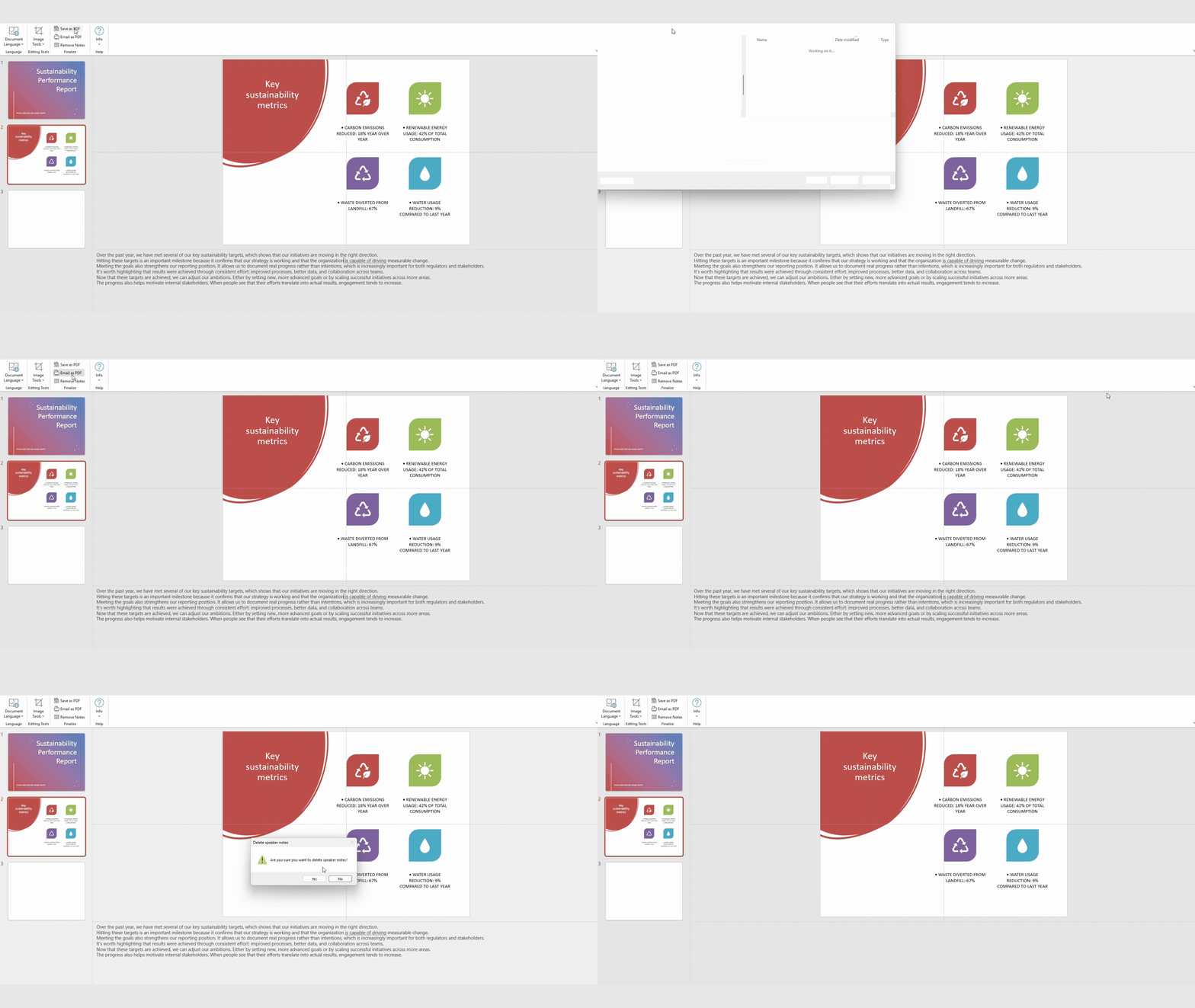
- Remove comments, tracked changes, and footnotes in one step for a clean final file.
- Export presentations to PDF or send them directly by email.
- Clear speaker notes in presentations when sharing externally.
-
-
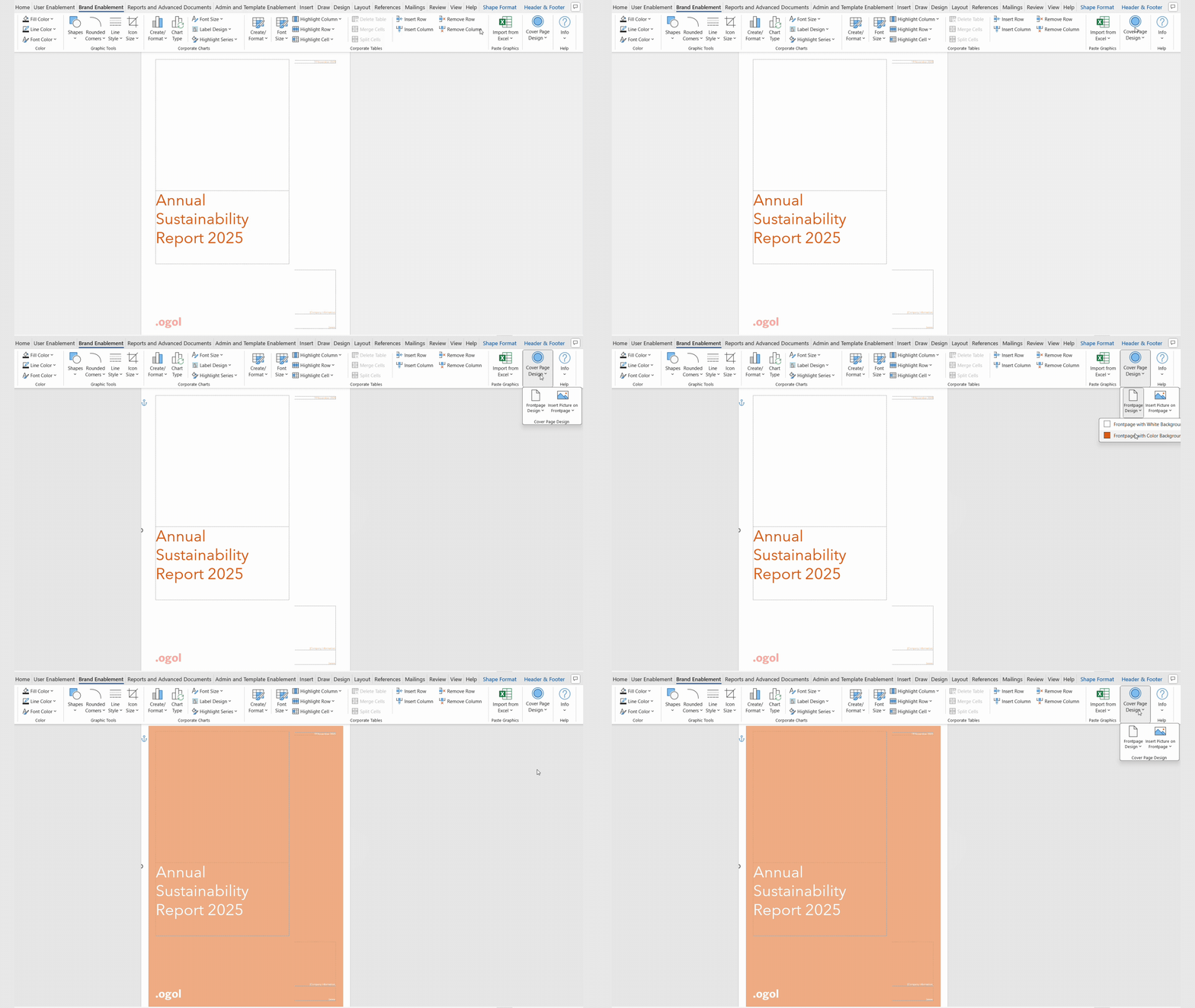
Cover page group
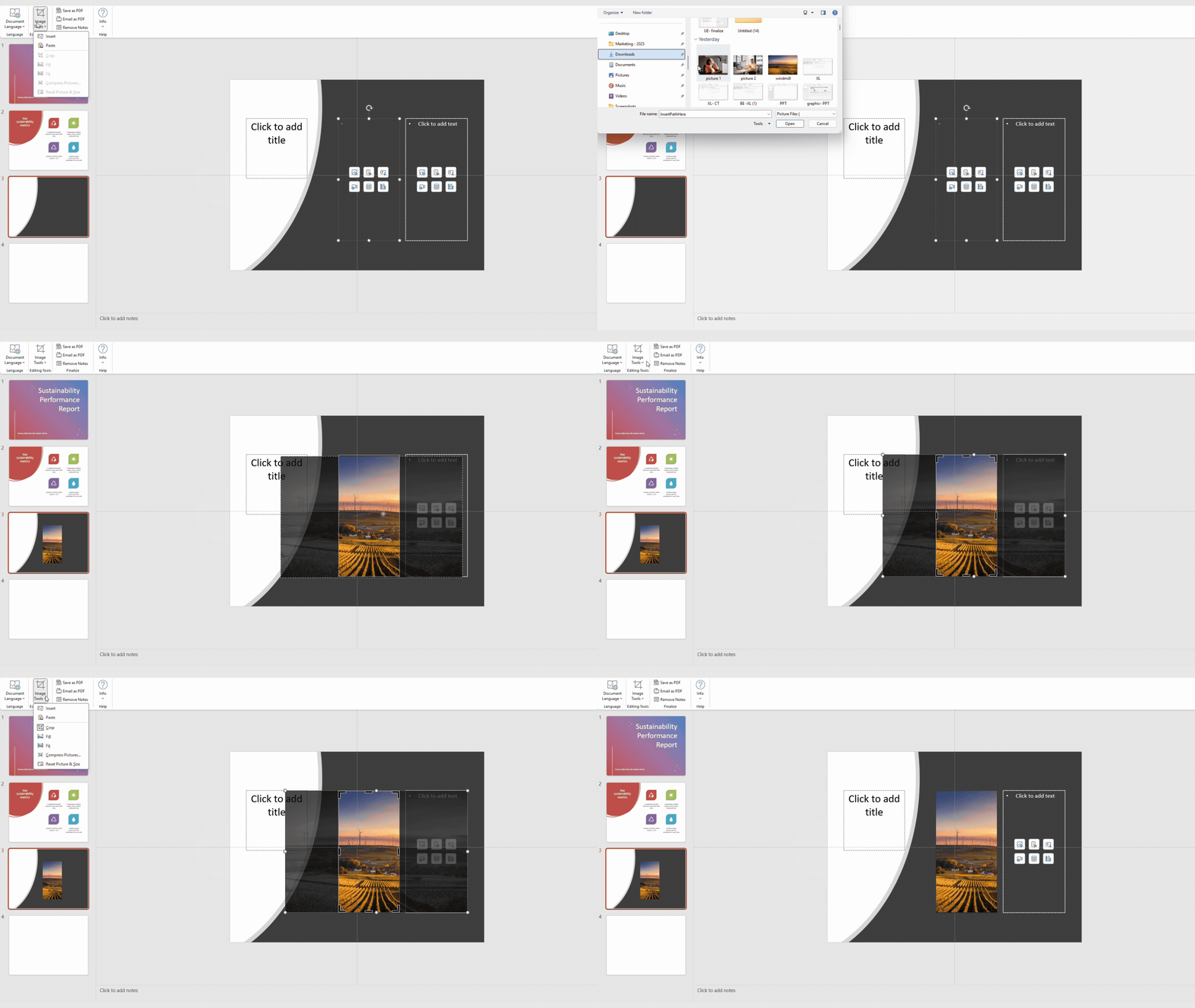
Build branded cover pages
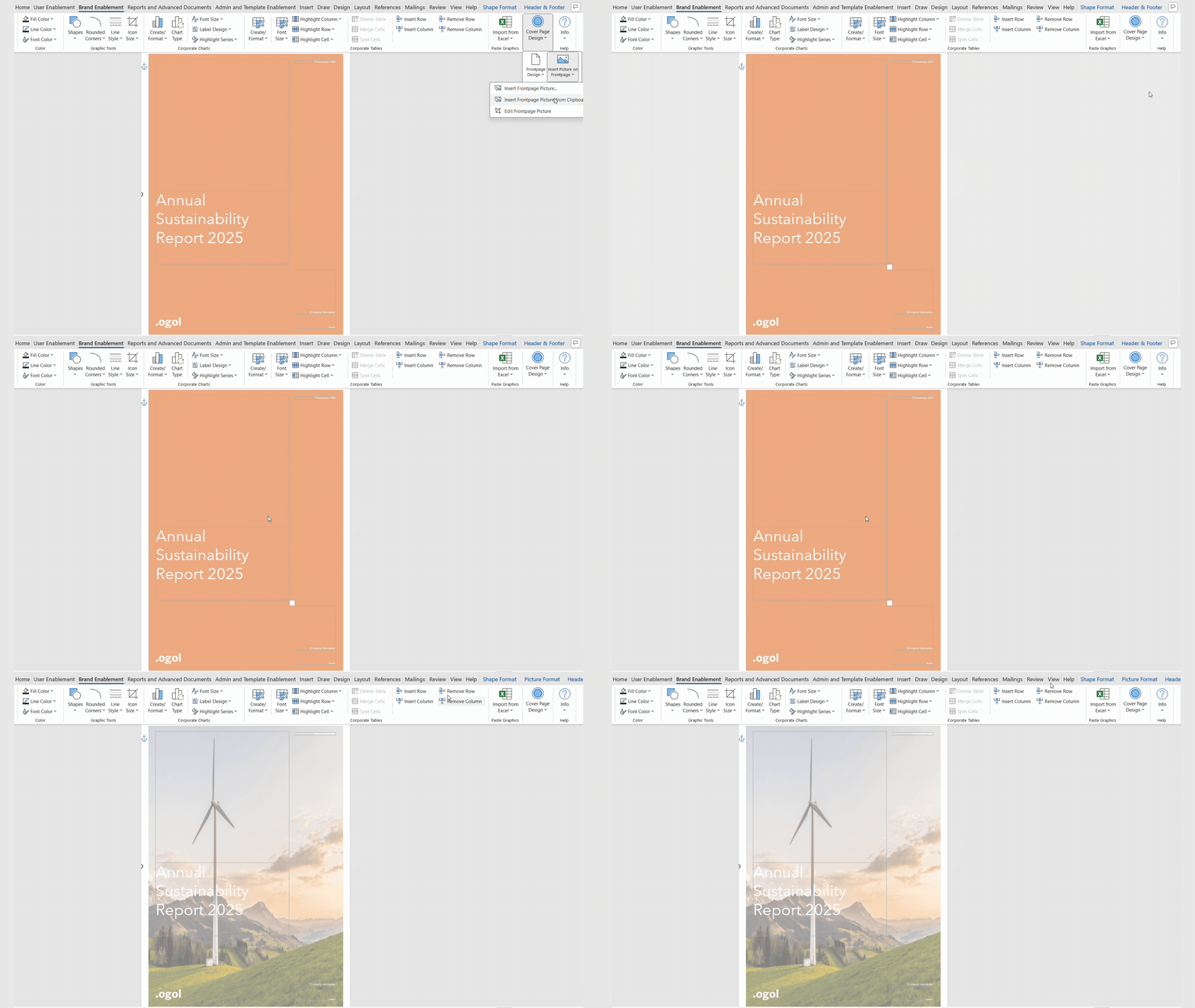
without relying on design teams.Easily apply design-approved front pages that set the tone for the entire document.
- Apply approved corporate color themes to cover pages.
- Insert and crop images into predefined cover layouts.
-
See our other Productivity Tools
Four ribbons to add into your Microsoft Office applications to transform your document creation process.
Brand Enablement ribbon


For organizations that need consistent branding across reports, slides, and spreadsheets and want to save time on manual adjustments. Apply corporate styles and layouts to charts, tables, and visuals in seconds.
Reports and Advanced Documents ribbon
For teams producing detailed reports or advanced documents that require standardized layouts, compliance, and collaboration. Handle report creation, research papers, and detailed documentation with confidence.
Admin & Template Enablement ribbon
For administrators, template managers, and experienced users who need to update templates, enforce consistency, and reduce manual formatting errors in Word. Manage templates, fields, and formatting across the organization efficiently.
Boost your workflows with Productivity Tools
Learn more about the tools from our experts who will be able to advise you on the best Productivity ribbon for your specific use case to help your business achieve its goals
